Reports
The workload week
One row for each technician and one column for each day. Reading a week at a glance, which day a job appears on, and which row to check first.
Last updated 12 August 2026.
What the workload week is for
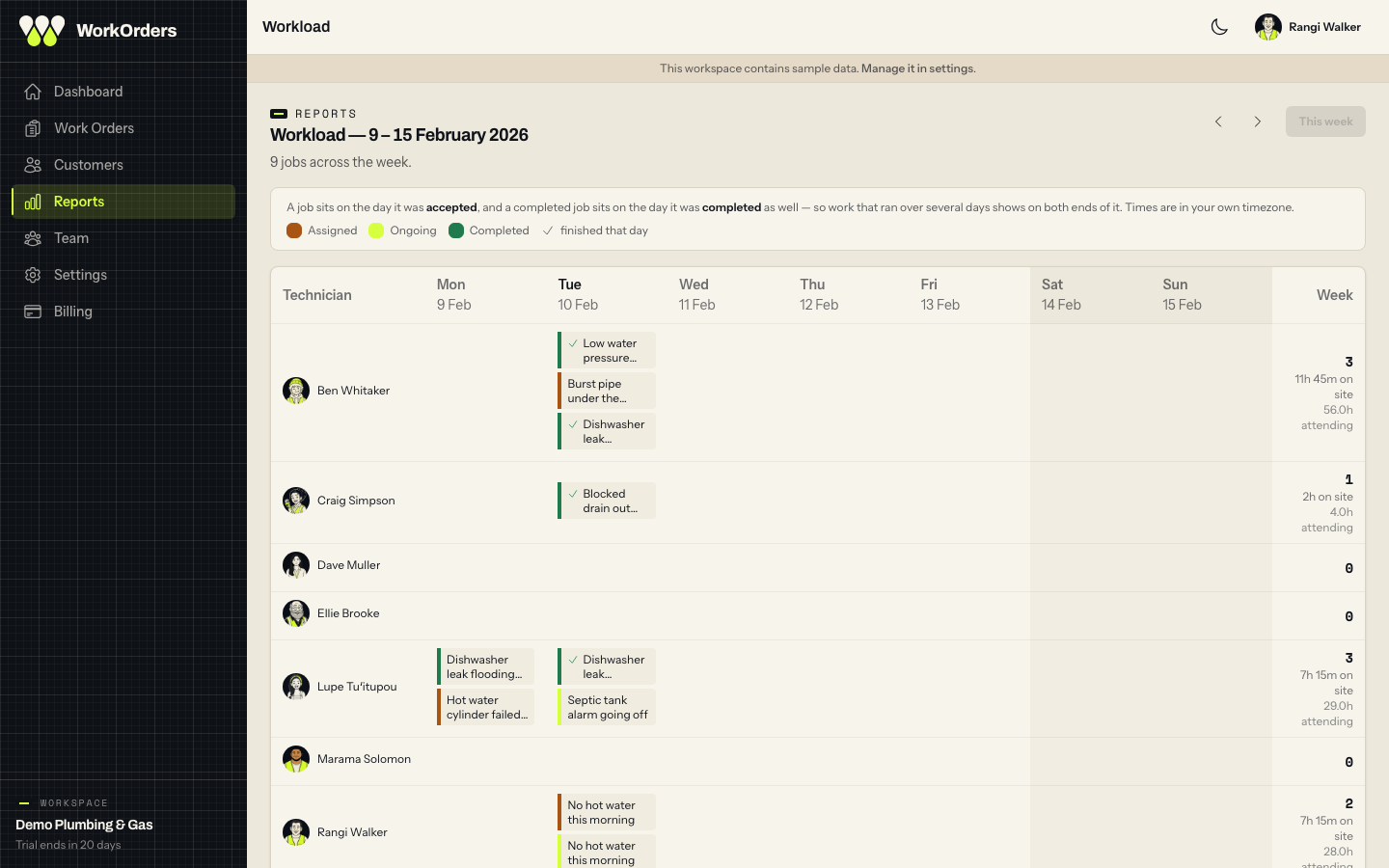
The workload week shows one week as a grid, with a row for each technician and a column for each day. It's the quickest way to see who had a full Tuesday and who had nothing on. Open it from Workload calendar at the top of Reports. Like the rest of Reports, only owners and administrators can see it.
There are no filters, and you can't save or download it. For a list you can narrow down, name and export, see reports and saved views.
Which day a job sits on
There's one rule to know, and the screen spells it out in a panel above the grid. A job sits on the day it was accepted, and a completed job also sits on the day it was completed.
So a job accepted on Monday and finished on Wednesday shows up on both days, because the technician had that job on both. The week's totals down the right count each job once, however many times it appears. Someone who took four jobs and finished three of them shows four jobs, not seven.
A job nobody has accepted yet doesn't have a day, so it isn't on the grid. You'll find it in the Unassigned row.
What was already being carried
Accepting and completing are both one-off events. A job someone took on three weeks ago and still hasn't finished has neither event in this week. Going by that rule alone, it wouldn't appear anywhere, and the technician holding it would look free.
That's what the first column, Brought in, is for. It shows work someone took on before this week that was still open when the week started. Each block says how long the job has been held, with the longest first.
It sits before Monday rather than on it, because the job didn't start on Monday. It's also counted separately, in its own column total and as +2 brought in beside a person's week. It's never added to the week's job count or hours. Otherwise a job carried for four weeks would have its hours counted four times.
If you look back at an earlier week, you'll see what was being carried then, not what's open now. A week you looked at last month will look the same today.
Days follow your own time zone, so Monday morning means Monday morning where you are.
Reading a row
Every active technician gets a row, even if they had no work that week, so you can see who has room. Anyone else who took work that week gets a row too. That way an administrator who picked up a job, or someone deactivated on the Wednesday, still shows up.
Unassigned is always there, as the last row. It's usually the first one worth checking.
Each block in a cell is one job. It shows the job's subject, a coloured edge for its status, and a tick if it was finished that day. Hover over a block, or tab to it, to see the rest: the reference, status and urgency, the customer, the hours attending and the time on site. Click it to open the job.
The Week column
The column down the right shows each person's week: how many different jobs they had, plus the time recorded on site and the hours attending they quoted, where there are any. Along the bottom, Jobs that day counts the different jobs across the whole crew each day. A job that appears in two people's rows counts once.
Neither figure is hours worked. Hours attending is what someone said when they took the job on. Time on site is what was recorded when they finished it, and not every job has one. Read how long the job took before using either number for pay.
Moving between weeks
The two arrows go back and forward a week. This week brings you back to the current week, and it's greyed out when you're already there. When you're looking at another week, its date goes in the address bar, so you can send someone a link to a particular week. Today's column is marked, and the weekend is shaded.
On a narrow screen
On anything narrower than a wide desktop screen, the grid turns into a list with a card for each day. Each card shows who had work that day and what it was, with the day's job count in the corner, or Nothing on the books. if there wasn't any. Each person's totals for the week appear once at the bottom. It's all the same information as the grid, just laid out to fit a phone.
Why a job you marked ongoing isn't on the day you did it
Only two dates put a job on a day: when it was accepted, and when it was completed. Marking a job ongoing changes its colour, but it doesn't move it to that day. A long job shows on the day it was taken and on the day it was finished. The days in between look empty on the grid, even though someone was working on it. To see what happened in between, check the job's own timeline. See a work order, start to finish.
The job doesn't disappear, though. After the week it was taken, it appears in Brought in every week until someone finishes it. If nothing at all has happened to it for a week, the Gone quiet tile on your dashboard counts it too.